


Protection against ransomware: A few simple tips
Winter is virus season. Besides people, computers are currently getting sick more often again, at the moment with ransomware.
Author: Prof. Dr. Marcel Waldvogel, our partner and IT security consultant. (Twitter, LinkedIn)
Winter is virus season. Besides people, computers are currently getting sick more often again, at the moment with ransomware. In the cloud, a large mail hosting provider and its customers have been affected for several days. Outside the cloud, a wave is under way that seems to focus on Russian government offices. Variants of both will probably soon appear elsewhere too. And even if not: the next general ransomware wave is sure to come. A good reason to prepare for it now. A few simple measures can have a big impact.
What is ransomware?
Ransomware, also known as extortion or encryption Trojans, is a relatively broad category of malware that "kidnaps" the data stored on a computer and only releases it again in exchange for a ransom. Whether and how depends on the particular software.
The first known precursors date back to 1989, but this type of malware only became really "popular" in the last 10 years.
A typical ransomware infection proceeds as follows:
- The malware gets onto the computer. How is entirely up to the ingenuity of the organisation behind the attack: it can be, for example, a dangerous email attachment, a USB stick left on the company premises, or it reaches the computer by exploiting a security vulnerability in the operating system or other software.

- The malware may also try to spread to other computers over the network by exploiting security vulnerabilities. If it does, it may wait a few hours or days before starting its "actual work".
- The malware starts encrypting files. Even if it waited beforehand: as soon as it has started on the first file, it wants to make as many valuable files inaccessible as quickly as possible. Speed is now the name of the game. If interesting network drives or cloud storage are connected, these may also be encrypted.
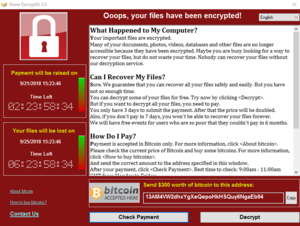
- As soon as the ransomware believes it has encrypted enough valuable data, it displays its ransom demand.
Something like this: "Oops, bad luck, your files are now unfortunately encrypted. But don't worry, we are the good guys and for a small fee we will tell you how to get your data back. Here is our Bitcoin address for transfers. Thank you! PS: If you don't respond within one day, it will get more expensive, and after more than three days it will be too late! It's your decision. The countdown starts now!"
A variant of the attack that has become popular in recent years is to first upload the data to the attacker's server. If the victim does not pay, the data can then be sold on the black market or the victim can be blackmailed a second time. This tactic, called doxing, is particularly popular when the target is an organisation that may hold sensitive data.
Another variant, used in the current case, is a so-called wiper. In this case it was christened CryWiper. It has no intention of ever decrypting the data again, which is why the data is usually not even encrypted but simply overwritten. That alone is no reason why the attacker might not still make a ransom demand; the proceeds then finance this and other criminal projects.
What to do after a ransomware attack?
As after any malware infection and any successful hacker attack, you should assume that the attackers have set up another way into the victim's network. With this backdoor, the next attack can be carried out much more easily (or the access can simply be sold to the next criminal organisation).
That is why there is really only one option: take all devices off the network immediately, reset them to factory settings and then set them up again from scratch: all software, all users, all credentials. Any passwords for email accounts, websites etc. should definitely be changed immediately.
Yes, that is a huge effort – and it is guaranteed to come at exactly the wrong time. But if you imagine that criminals could take control of your computers and networks again at any time, the decision should actually be clear. Maybe next time they will use your online banking access to steal your savings. Or spy on important information. Or do something else that you will definitely not like. At that point at the latest, you will have even more trouble.
You can take the reinstallation as an opportunity to finally tackle the urgently needed IT security measures that you have always been putting off. Or to standardise the setup of your computers, which can save time and money in the future.
Take the chance to start again on a clean slate, even if you would rather have put it off a little longer.
But I don't want an attack!
By now at the latest, it should be clear to you that you would really rather not become the victim of a cyber attack, no matter what form it takes.
Fortunately, protection against a wiper like the current CryWiper, or a classic ransomware without a doxing function, is particularly simple: all it takes is a working backup.
But please take the time right now to protect yourself a little better with a few simple additional steps. In many cases, these few steps are enough to significantly increase the resilience of individuals or micro-businesses without special risks against a cyber attack or malware infection.
As soon as you are exposed to higher risks, for example because (1) an outage of your IT lasting several days, perhaps even several weeks, would plunge your business into chaos or even ruin, or (2) you handle data that is particularly important or sensitive, you should definitely bring in additional expertise to identify and reduce your risks together with you and to plan the procedure in case something does happen ("business continuity"), because there is never absolute protection.
Protection against data loss
A backup helps against classic ransomware and wipers. It is also handy if laptops are stolen or break, lightning strikes, fire rages, water gets in somewhere, or you simply overwrite or delete important files by mistake. Whatever happens: you should always have a backup. Fortunately, backup for laptops and desktop computers is also the easiest problem to solve today.
Backup is always needed
Windows, macOS and most Linux systems now offer the built-in option of backing up local files to an external USB drive. If you connect this drive regularly, you will also have several previous versions available. Sometimes you only notice a mistake after the next backup has already been made.
If something goes wrong or ransomware becomes active just then, the connected backup drive can also be affected, as several Bavarian school districts have just painfully experienced.
To protect against such events, as well as the natural hazards or crimes mentioned at the beginning, the so-called "3-2-1 rule" for backups has become established:
3 media, 2 different methods, 1 different location.
For example, a backup plan could look like this:
- 2 USB drives at different locations (e.g. office and home); each of them is updated at least weekly, with at least one backup every 1–2 working days.
- 1 cloud backup with a trustworthy provider. Alternatively: the most important data is synchronised with cloud storage.
In principle, all backups (actually all storage media, including those in the computer) should be stored encrypted. The keys to these backups should also be printed out and stored in two different secure locations (e.g. a safe). Always remember that you depend on the backup most of all when your computer can no longer be used, for whatever reason.
Please note that data on servers and in cloud services is not backed up by a local backup. Separate measures are required for this. For further advice, contact the IT experts you trust.
Backup checklist
- 3 media
- 2 methods
- 1 different location
- regular reminder
- encrypted
- keys additionally stored securely
Protection against data exfiltration
With the backup, you always have a spare copy of your data. However, it does not protect against other people gaining unauthorised access to your data, i.e. your data flowing uncontrolled into the hands of others. The following measures partly also help against data loss, but above all against data exfiltration.
Unique passwords
Passwords are most secure when they are known to only two parties: a single person and a single service against which that person must authenticate. All other cases are insecure and should be avoided. Let us take a closer look at two insecure cases in particular:
One password for several services:
People can only remember a limited number of passwords. For most of us, more than 2–3 complex passwords cannot be reliably remembered. That is why tactics such as the note under the keyboard or using identical or only slightly modified passwords for different services became established early on.
Both methods are bad ideas and are no longer necessary today. There is no longer any reason to do without a password manager, not least because it can also protect against further attacks such as phishing.
One password for several people:
If hardware or software tempts you to share a password with other people in order to use it sensibly, you should complain to the manufacturer. Creating additional accounts and delegating some of your rights to these accounts should actually be standard today, and not only from a security point of view.
But if you have no choice: there are also password managers that allow individual passwords or entire groups to be shared between several users. Always use this function with care, though.
Password checklist
- A separate password for each person and each account (or service).
- No password is easy to guess.
- Passwords are never stored unencrypted (except in a vault).
- Password reset: the email account to which the password reset email can be sent should be at least as secure as the account behind the password.
- If necessary, make arrangements for how authorised persons can access your passwords and data even if you are incapacitated for a longer period.
On the guessability of passwords: a password should not be derivable from any other information or any other password. Because for a computer, a billion attempts are just a piece of cake, and any rule you can think of to disguise the information has certainly long since been automated by professional attackers.
Multiple factors
In addition to your password, you should activate two-factor authentication (2FA), also known as multi-factor authentication (MFA), on as many of your accounts as possible.
This additional factor ensures that stealing or guessing a password does not automatically lead to account access.
2FA methods range from text messages to your mobile number and one-time code lists to code-generating apps on your phone and secure additional hardware such as USB tokens based on the FIDO2 standard.
When activating the second factor, however, you should make sure that it is still possible to confirm legitimate use of the account if your phone or USB token is defective or lost.
Separate accounts
If you work with different security levels, you should carry out these activities on different computers or at least different accounts.
For example, such an additional computer with suitable restrictions can be used to open unknown documents, for instance when a patient brings an alleged X-ray image on a USB stick to a doctor's practice.
Or use it if a casual acquaintance recommends a program that is guaranteed to make you win at the online casino. (Better still: keep your hands off any software or other offers that seem too good to be true. There are usually no good intentions behind them.)
But even if you just want to briefly test legitimate software, an isolated system is recommended so that you can clean up properly afterwards.
Separation checklist
- Use separate computers or accounts for activities that are independent of your important data.
- Use them especially for experiments.
- Restrict the rights of these computers and accounts as much as possible (file access, internet access, …).
Naive software
A popular gateway for malware is to persuade people to act thoughtlessly by means of great promises or threats: the "unique" software mentioned above, the call from the alleged "Microsoft support" about the terrible virus infection on your computer, or the "lost" USB stick with potentially interesting data. This approach is very flexible because it can be tailored to the individual person, but it is also time-consuming.
The other gateway requires a little more initial effort, but can then be automated. It is based on the fact that all software has bugs. Some of them are security-relevant. And several thousand of them every year can be exploited over the internet.
This affects not only software from small, inexperienced vendors; far too often it is also the large, complicated software packages of established vendors.
Recognising whether and how installed software could be misused by attackers is very difficult to assess even for experts. For laypeople, it is simply impossible.
But there are some simple rules of thumb:
- Any software can potentially be a gateway.
- The longer software goes without bug fixes, the higher the chance that security problems are known in the relevant circles.
- Do not go out of your way to invite unknown corners of the internet in. (Many websites, including reputable ones, instruct your browser to download data via branching tracking and advertising networks that are completely outside the control of the original website.)
Software checklist
- Keep software and operating systems up to date whenever possible.
- Replace outdated or no longer maintained software.
- Delete unused or dispensable software. This also applies to installable plugins or extensions.
- Use tracking and ad blockers.
Chatty storage media
Sooner or later, every storage medium is lost or stolen or disposed of. In all these cases, the data on it should not fall into the wrong hands. With loss and theft, this is by definition uncontrollable, but it is often forgotten when disposing of storage media too (or is considered impractical because the medium already seems to be defective).
Due to their special architecture, deleting data is particularly difficult on SSDs.
There is a very simple way to stop storage media from becoming chatterboxes: encrypt them from the start and store all data on them only in encrypted form. Then you no longer need to worry about data leakage – even if the drive is stolen.
Storage media checklist
- Encrypt all portable storage media ("full disk encryption").
- Also encrypt all built-in hard drives/SSDs (laptop, mobile phone, …) if your system allows it. (This depends on the hardware/software combination, but works on many modern devices and is even standard on certain phones and tablets.)
- Store the passwords and recovery keys of the storage media securely.
Further information
Articles on the topic by Marcel Waldvogel (in German):
- Ransomware is different
- Is 1234 a good password? (Passwords — background and tasks)
- Security tips, not only for the home office
Products on the topic from ALPEIN Software Swiss AG: